Using Intel Advisor on Princeton Research Computing Clusters
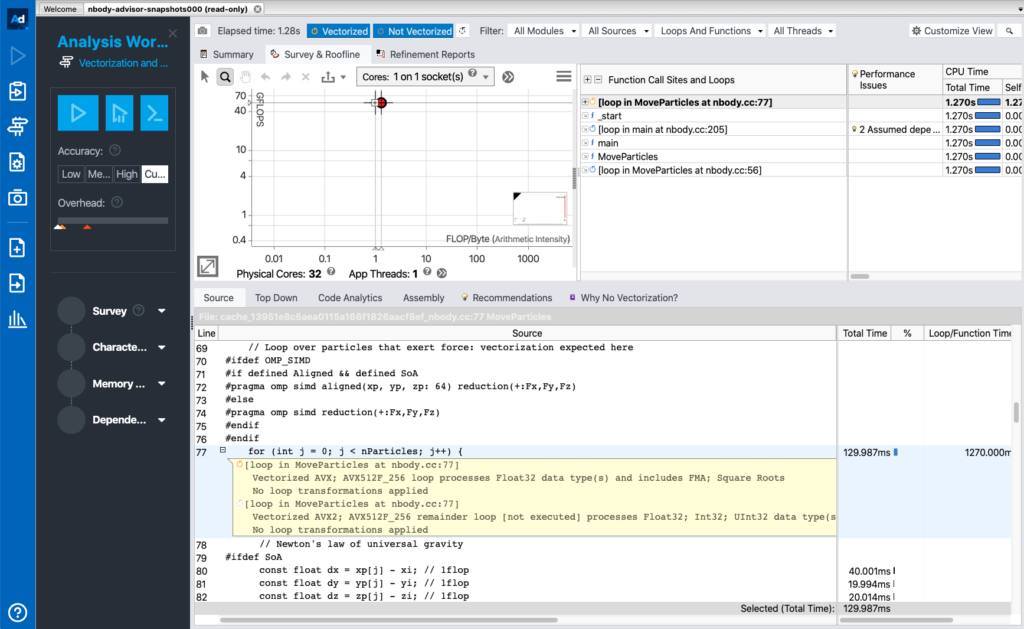
Before, we usually recommended that you used the CLI to collect data via batch jobs at compute nodes and then viewed results using the GUI on a login node. Now as the Intel Advisor GUI is available free on macOS, we recommend that you copy the collected data from the remote system to your local macOS to view. Note Intel Advisor does not support data collection on macOS and you can only use macOS for displaying the data collected on a Windows or Linux OS.
Collecting Data at Remote System
Once in a remote system (e.g., Tigercpu, Adroit etc), you start by loading the module, e.g., module load intel-advisor. Then you can collect the data using the Intel Advisor CLI. The CLI is launched with advisor command. You can use advisor –help to search for the command for a specific action. For example, after issuing advisor –help command, you will see
Intel(R) Advisor Command Line Tool
Copyright (C) 2009-2020 Intel Corporation. All rights reserved.

 Usage: advisor <--action> [--action-option] [--global-option] [[--] <target>
 [target options]]

<action> is one of the following:

    collect          Run the specified analysis and collect data. Tip: Specify the search-dir when collecting data.
    command          Issue a command to a running collection.
    create-project   Create an empty project, if it does not already exist.
    help             Explain command line actions with corresponding options.
    import-dir       Import and finalize data collected on an MPI cluster.
    mark-up-loops    After running a Survey analysis and identifying loops of interest, select loops (by file and line number or criteria) for deeper analysis.
    report           Generate a report from data collected during a previous analysis.
    snapshot         Create a result snapshot.
    version          Display product version information.
    workflow         Explain typical Intel Advisor user scenarios, with corresponding command lines.

For help on a specific action, type: advisor --help <action>

Examples:

 Perform a Survey analysis.

 	advisor --collect=survey --project-dir=./advi --search-dir src:r=./src -- ./bin/myApplication

 Generate a Survey report.

 	advisor --report=survey --project-dir=./advi --search-dir src:r=./src

 Display help for the collect action.

 	advisor --help collect
advisor –help collect shows you the command to perform a specific analysis. For example, to perform a survey analysis to determine hotspots, we use
advisor --collect=survey --project-dir=./advi --search-dir src:r=./src -- ./bin/myApplication
To collect the roofline, you can run a tripcounts analysis on top of the above survey analysis. Note the project directory needs to be the same for both analyses.
advisor --collect=tripcoutns -flop --project-dir=./advi --search-dir src:r=./src -- ./bin/myApplication
Intel Avisor version 2021.1 provides a roofline analysis option to integrate the earlier two steps roofline collection in a single step.
advisor --collect=roofline --project-dir=./advi --search-dir src:r=./src -- ./bin/myApplication
Note it is recommended to NOT use –no-auto-finalize option for reducing collection and finalization time if the data will be reviewed on a local macOS later since the macOS might have a different version of compiler, runtimes, math libraries and other parts of analyzed application stack (see: https://software.intel.com/content/www/us/en/develop/documentation/advisor-cookbook/top/analyze-performance-remotely-and-visualize-results-on-macos.html).
It is also helpful to use the GUI to find out the command. For example, you can:
- Log in a remote head node with ssh -Y usersname@adroit.princeton.edu
- Load the module with module load intel-advisor
- Launch the Intel Advisor GUI with advisor-gui
- Create a project
- Set up the project properties
- Choose the appropriate analysis type
- Click the get command line button on the workflow tab under the desired analysis
- Copy the command line to clipboard to paste to the script for remote runs